What it all boils down to
Throughout this document we often referred to the competition settings page (or mentioned “at competition creation time”), which is where the game mode eventually ends up being picked for a given competition (hub / tournaments) and can be further tailored depending on the keys that were marked as editable when creating it.
Overview
This is how a game mode looks like when it is picked in the Match Settings sections of a competition’s settings (for hubs, it’s under the Queue and Match Settings):
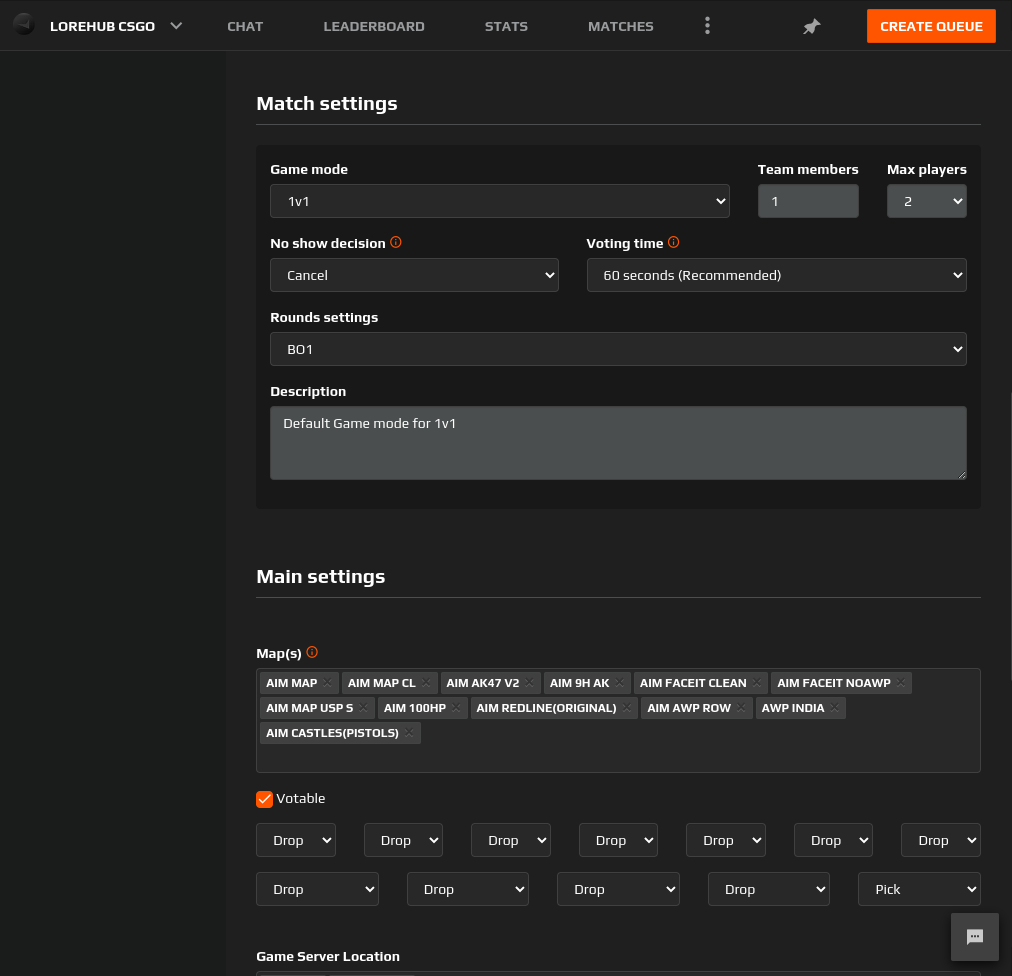
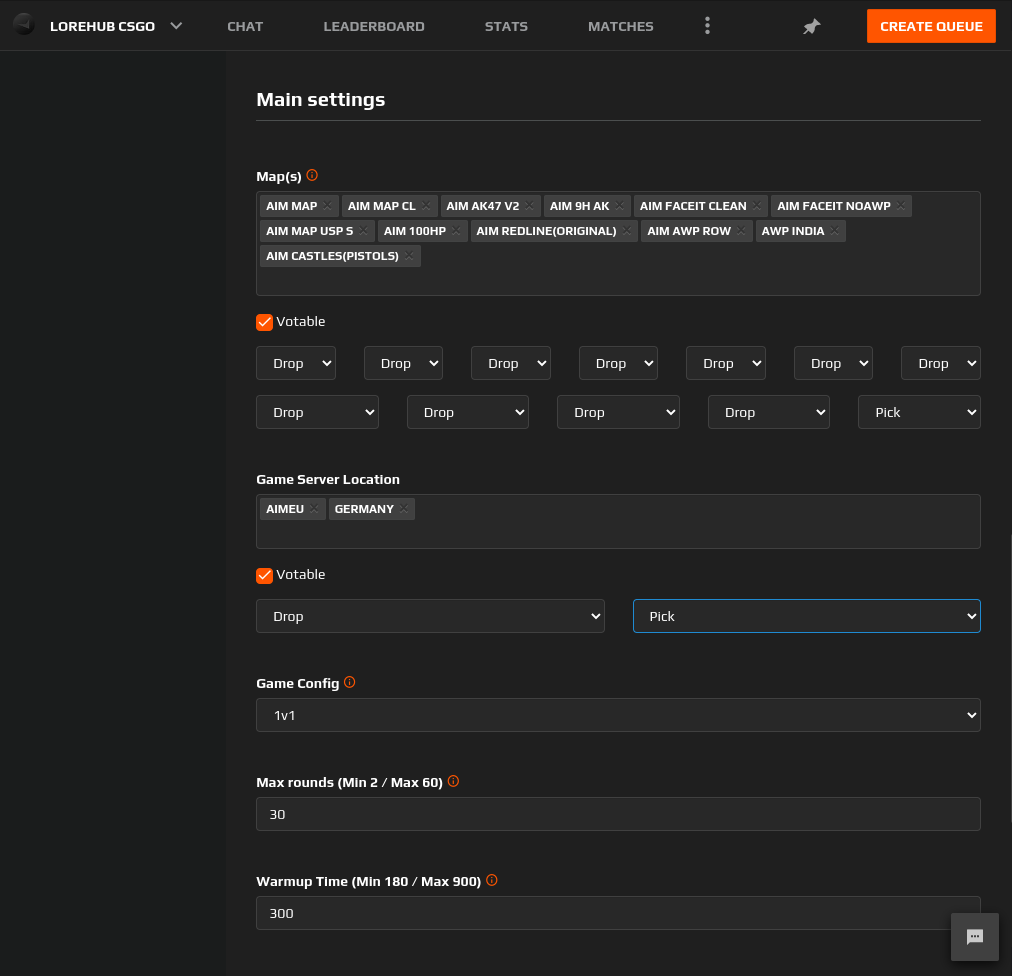
Main settings is the section where all editable keys are listed, with value pickers based on their data types, and tooltips showing the key’s description attribute, if defined.
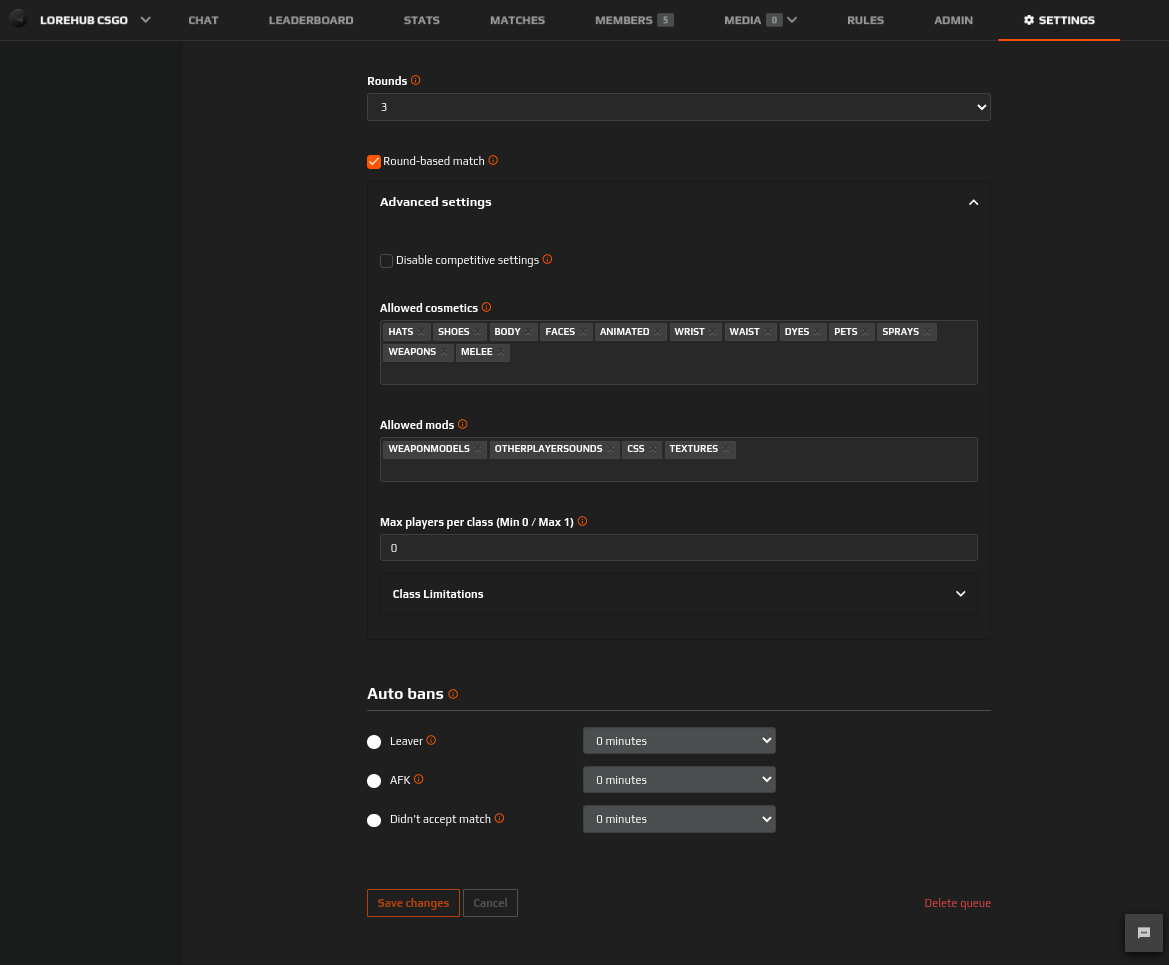
The Advanced Settings pane is an expandable section where all keys marked as “Advanced Settings” (on the Game Studio) end up being listed. The idea behind this is to group keys, with sensible defaults which are not often edited, into an initially collapsed pane. Entire key groups can be marked as Advanced Settings, too (like the Class Limitations one in the screenshot below).
Key configuration
Single Value Keys
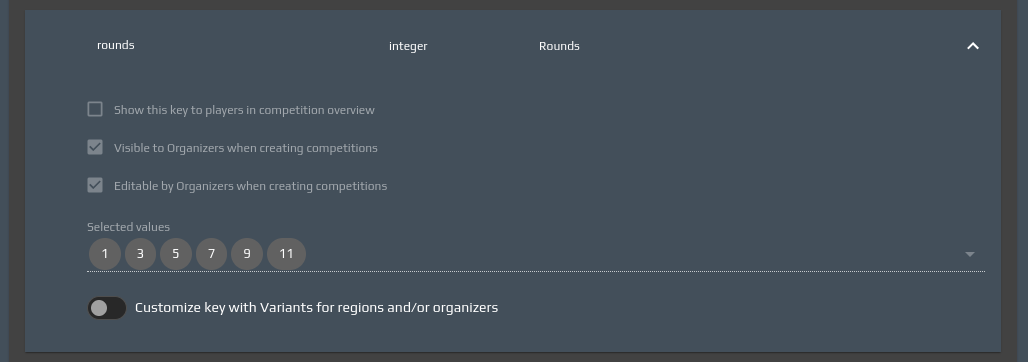
This is an example of how a single-value key (in this example, an integer one) looks like on the Game Studio vs how it is displayed on the competition settings page:

Min/Max Keys
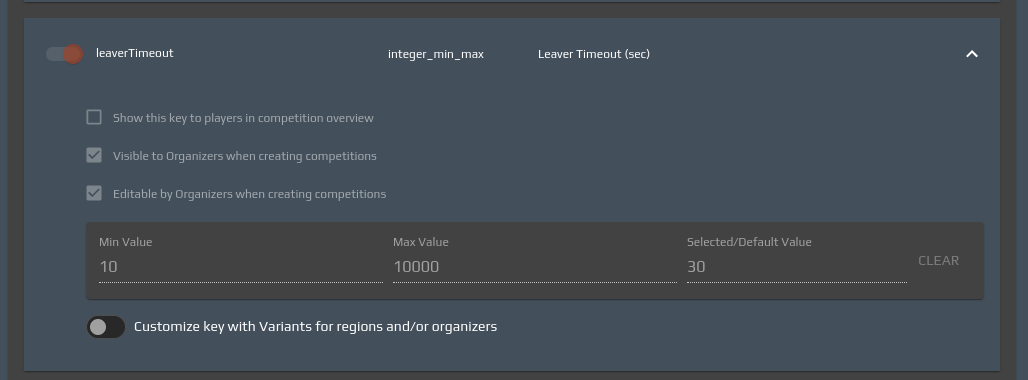
This is an example of how a min/max key (in this example, an integer_min_max one) looks like on the Game Studio vs how it is displayed on the competition settings page:

Multiple Value Keys
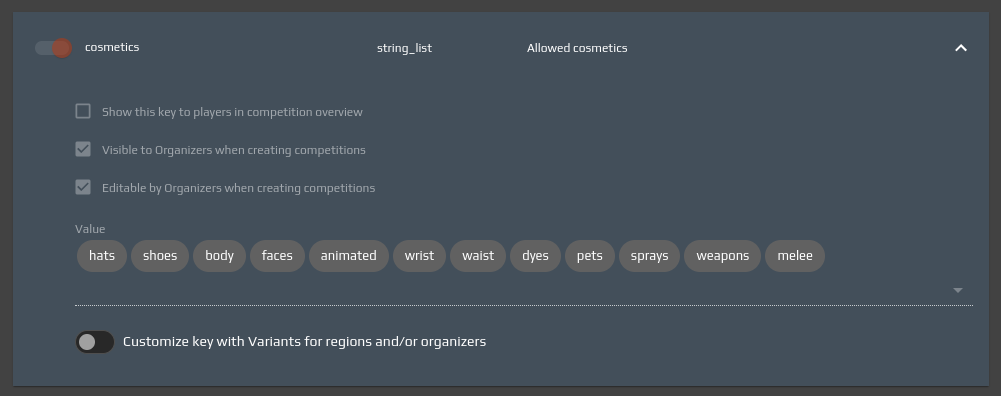
This is an example of how a multiple value key (in this example, an string_list one) looks like on the Game Studio vs how it is displayed on the competition settings page:

Votable Keys
This is an example of how a votable key looks like on the Game Studio vs how it is displayed on the competition settings page. In this example, the UI on the queue settings page changes slightly.
If the key indeed needs to be voted upon by the match players, the Votable flag must be checked. This allows for a multiple selection (of maps, in the example below) and a drop/pick sequence for the entities. In the example below, team captains take turns to vote, the first three maps are chosen to be dropped whilst the last one must be picked. If the game supports it, on multi-round matches (Best Of 3, Best Of 5) where more than one map can be played, there may be more than one “pick” option. E.g. Three rounds, three maps to be picked out of 9, the voting types could be defined as: Drop, Drop, Pick, Drop, Drop, Pick, Drop, Drop, Pick, meaning only the third, sixth and ninth map are picked, while the others are voted upon to be dropped.
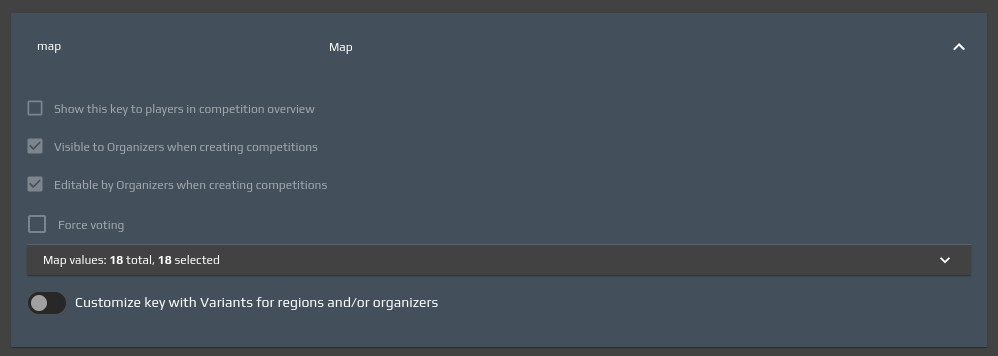

If, on the other hand, the organizer wants to exclude the key from the voting phase, the Votable checkbox needs to be left unchecked, and the UI will prompt the organizer to pick just one value from all the available ones.

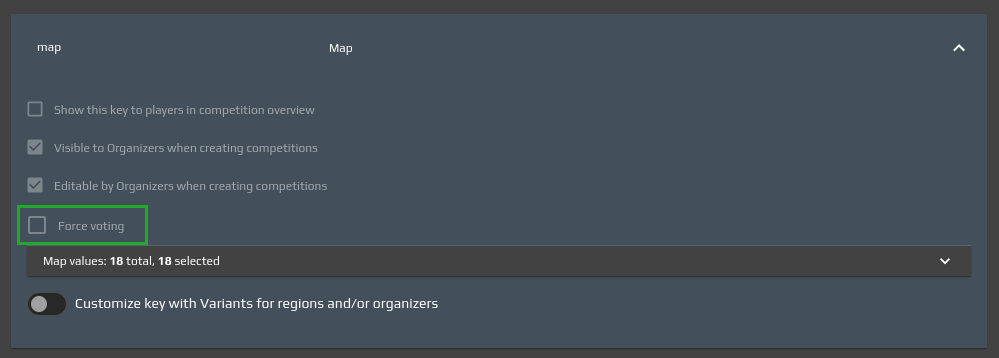
If the game mode creator does not wish to give organizers the possibility to exclude a certain key from the voting phase, the Force Voting flag can be checked on the game mode.