Game Mode Creation
General Information
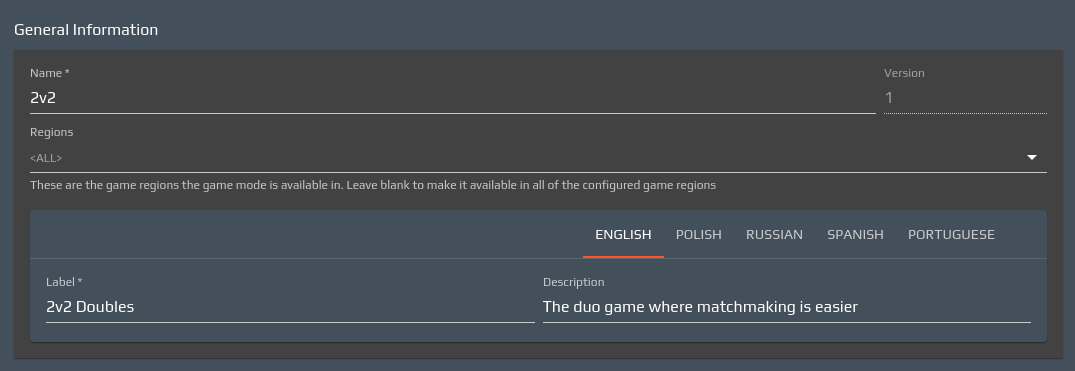
This is where you will define the game mode’s name, label and description, as well as the game regions it will apply to (a game mode can be restricted to a subset of the game regions defined in the Main Configuration > Regions section). Only label and description will be visible to organizers and players.
Teams & Players

This is where you will define the game type (2 Factions / FFA), the number of players per team and the minimum and maximum number of players in the match (the latter setting can only be edited if the game type is FFA). Moreover, if you have defined a Flexible Factions Key in the Match Custom Data section, this is where you can opt to include it in the game mode (the flexible factions key is, by design, not mandatory).
AFK & Leavers
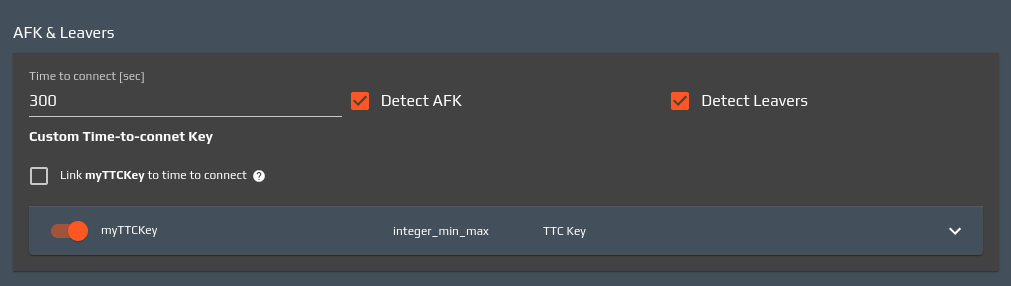
This is where you will define the game mode’s time to connect, and choose which detections should be enabled (AFK / Leavers). This represents the time - in seconds - the game should wait for all the players to join the match. Moreover, if you have defined a Time To Connect Key in the Match Custom Data section, this is where you can opt to include it in the game mode, thus overriding the default time to connect.
Stats
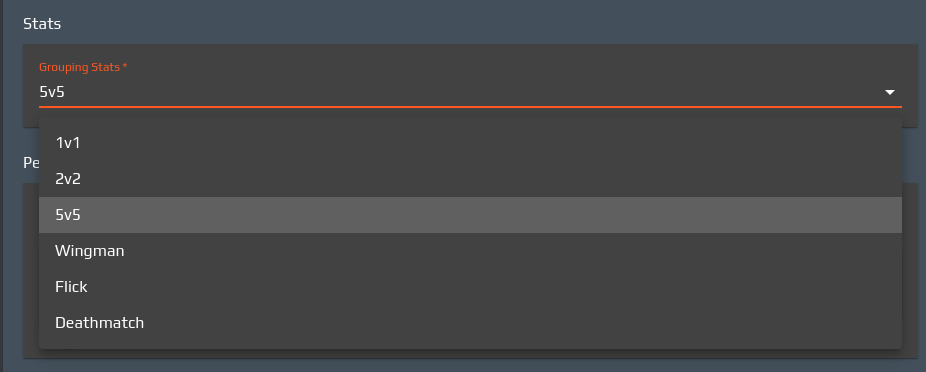
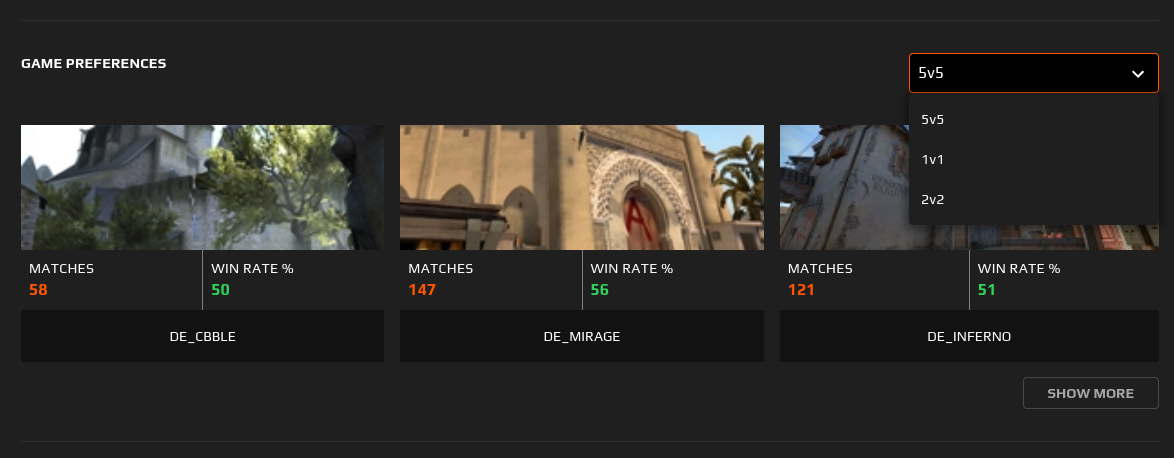
This is where you will pick one of the stats groupings (which you will need to define beforehand in the Game Modes > Stats section) this game mode will hold. This value instructs the match finished event on which group of stats it should add its statistics to. Generally, grouping stats refer to the number of players per faction, i.e. 1v1, 2v2, 5v5, etc.
Permissions
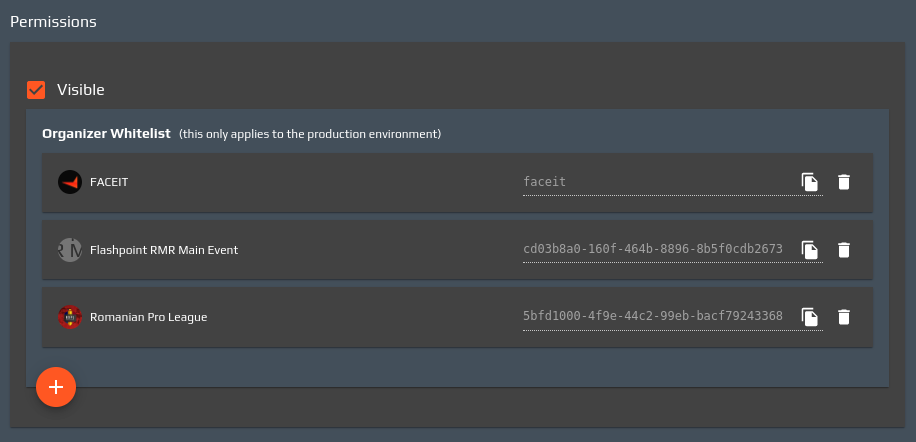
This is where you will indicate whether this game mode should be visible on the platform (otherwise, it can only be seen by the special faceit organizer for internal competitions) and whether it should only be visible to a set of whitelisted organizers. If the Organizer Whitelist list is left empty (and the visible flag is checked), the game mode will be public.
ELO

This is where you will define the game mode overview’s eloMode and eloType properties. These are strings representing which of the player’s Elo type will be altered by the outcome of the match.
Match
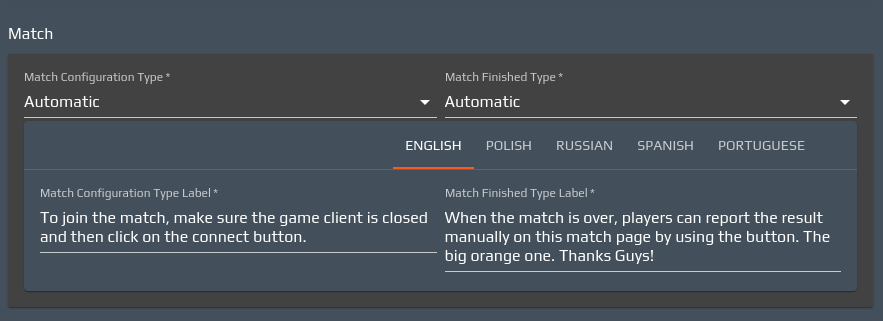
This is where you will define the match behavior. If the match configuration type is Automatic, a match configuration call will be dispatched to the game when the match is created, while if it is set to Manual the match creation won’t generate any call to the game. The Match Configuration Type Label defined will be shown to the players in the room when the match is being configured.
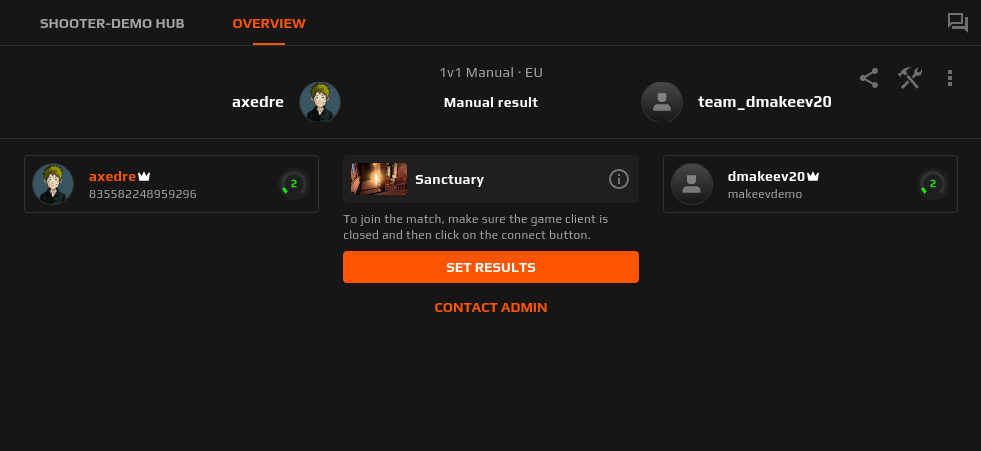
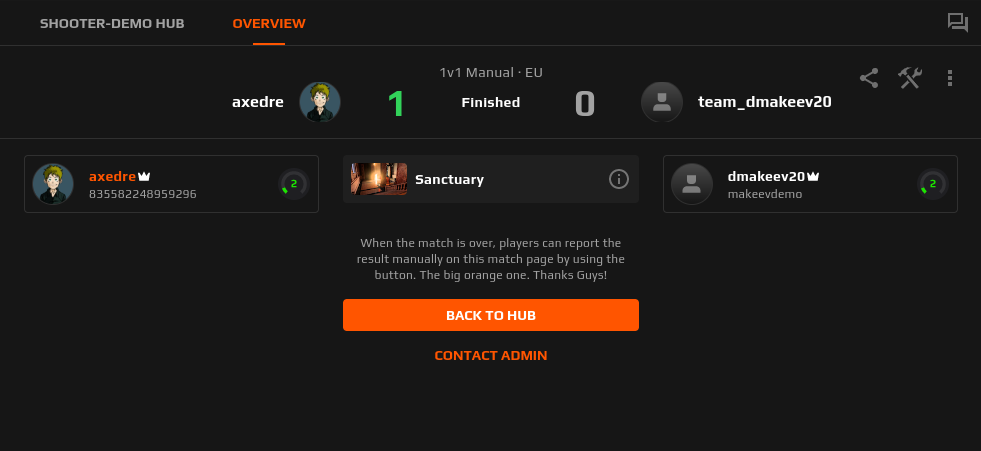
In the same way, if the match finished type is Automatic, the match will end only if the game automatically notifies FACEIT about the match end. If the type is Manual, only admins will be able to end a match inputting the final scores. If the type is User Actioned, the match’s captains will be able to autonomously input the final scores in order to end the match (if the scores are not consistent, an admin will be called). The Match Finished Type Label defined will be shown to the players in the room when the match is ongoing.
Best Of
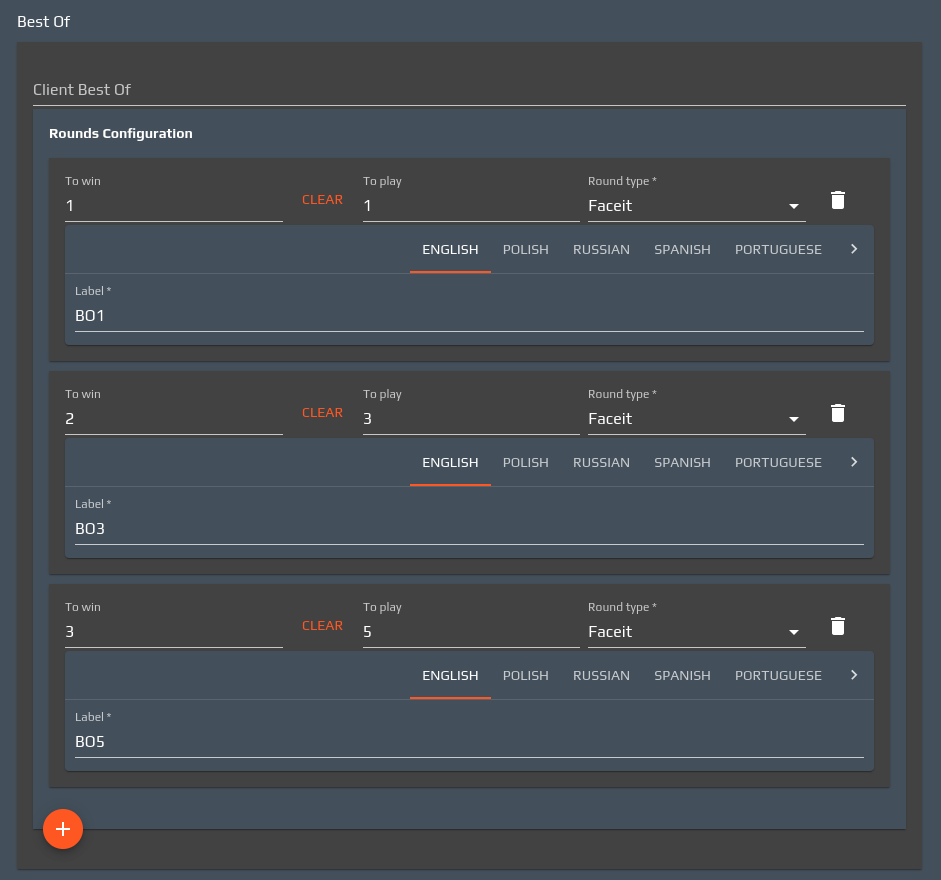
This is where you can define the configuration of possible rounds for the match, by adding one or more round configurations; each configuration is defined by the number of rounds that are to be played, and the number of rounds it takes a faction to win the match; as well as the round’s label and its type:
faceit: faceit handles the round configuration and sends the game separate match configurations (i.e. the game handles those as separate matches, FACEIT receives separate match finished events and regroups the match results under the same match as round results instead)publisher: faceit sends only one match configuration, the game handles the various rounds and responds back with one match finished event, whose payload indicates the various round resultsmixed: faceit sends only one match configuration, but receives several match finished events, one per round, and regroups them under the same match as round results instead
In case a round is of type “mixed” or “publisher”, and a “Best Of” key is defined, you may define a “Best Of” value for each round configuration that will be sent in the “Best Of” key.
Voting / Match Custom Data
This is where you will edit the keys that will hold the parameters eventually passed to the game_custom_data object during the match configuration. This section is usually called tree since the keys can be nested at any level, which will have an impact on the way they are presented at competition creation time. For instance, a tree with this structure:
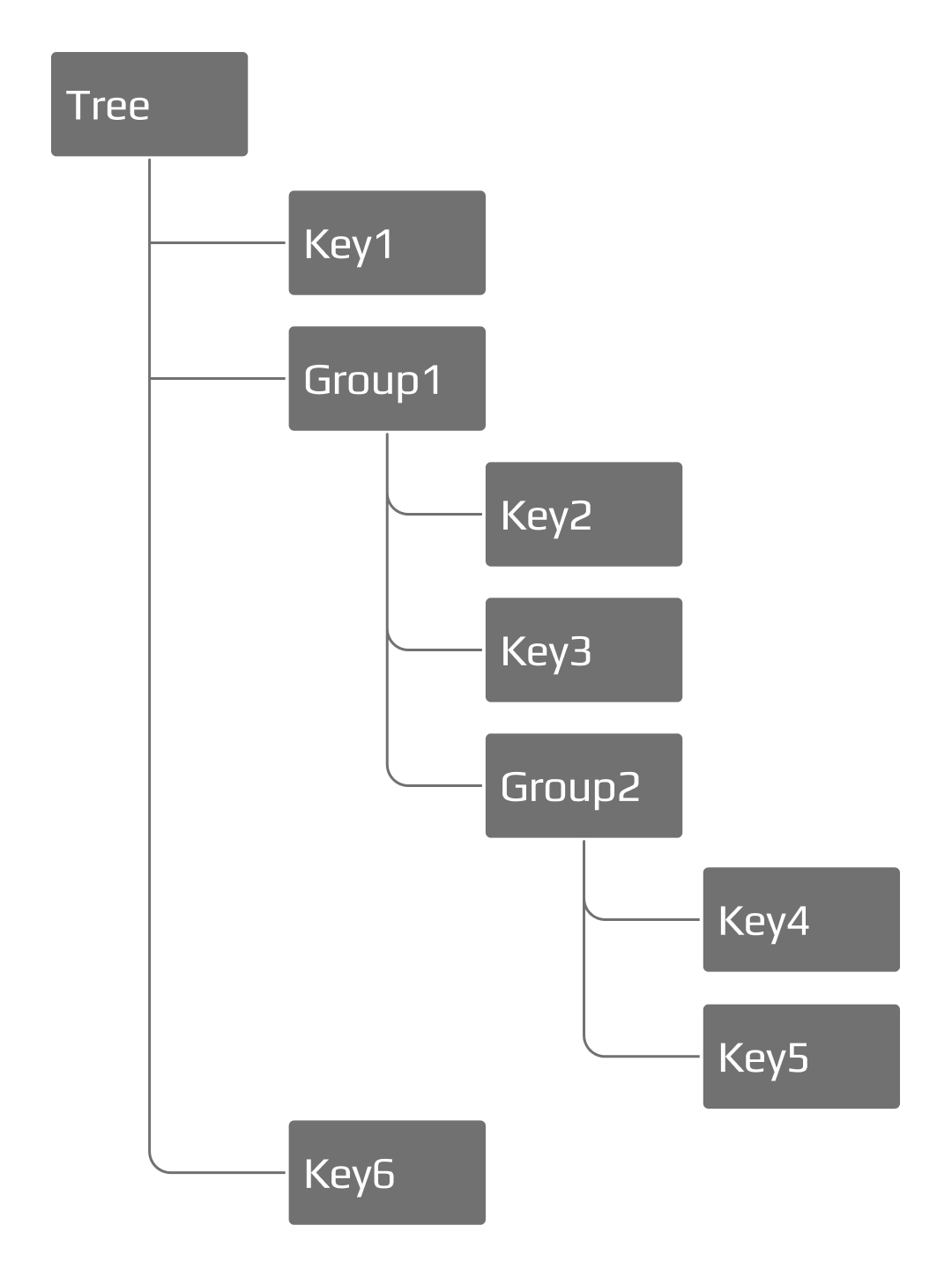
defines a set of keys that will be presented on the competition’s queue settings page as follows:
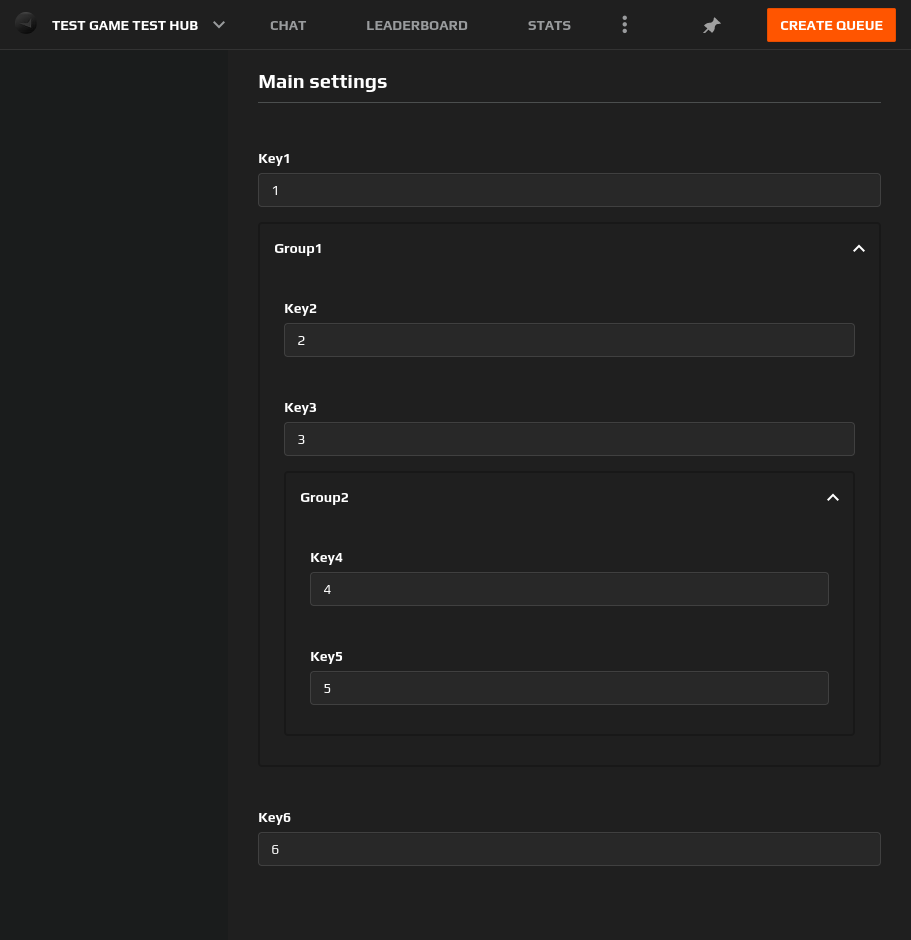
Groups in the tree are automatically created based on the key name, which uses dotted notation. To generate the above tree, for instance, the keys should be named:
Key1Group1.Key2Group1.Key3Group1.Group2.Key4Group1.Group2.Key5Key6
Adding and editing Keys on a Game Mode
When creating or editing a game mode, you will populate the tree by editing the Voting and Match Custom Data sections of the game mode page, where you will find the list of keys pulled, respectively, from the Voting and the Match Custom data subsections of the Game Modes section.
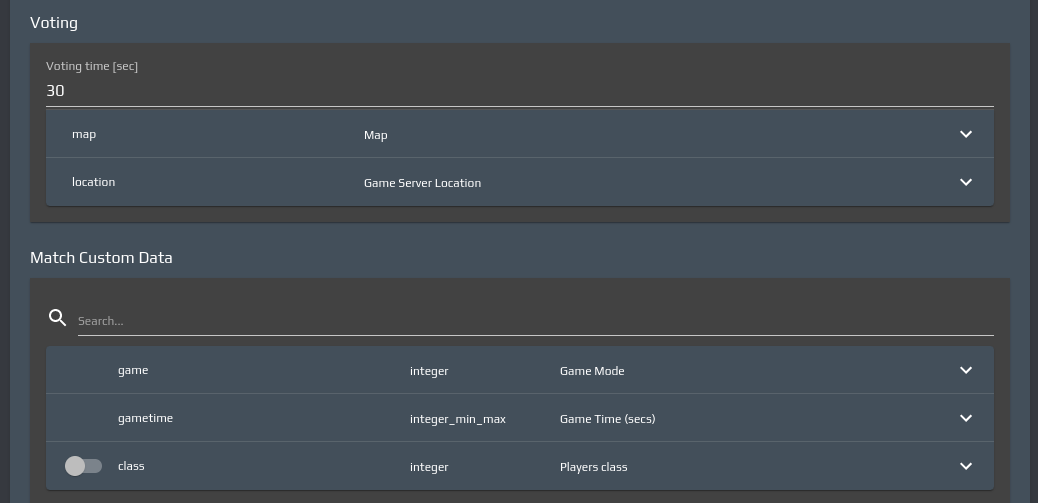
If you have defined a key (both votable and non-votable) as not mandatory, a toggle will show next to it to allow you to include it or not in the game mode tree. Each key can be expanded to specify whether it can be seen and edited by Organizers in the competition’s settings page at creation time.
Single Value Keys
If the key is of type String, Integer or Float (i.e. the match configuration will accept a single value for it), there can be two ways to configure it:
if the key is set to be not editable by organizers, you must provide the value that will eventually be passed to the game upon configuring the match, so the value editor will be a dropdown selector which will allow you to pick a value among the allowed ones (defined for the key in the
Game Modes > Match Custom Datasection)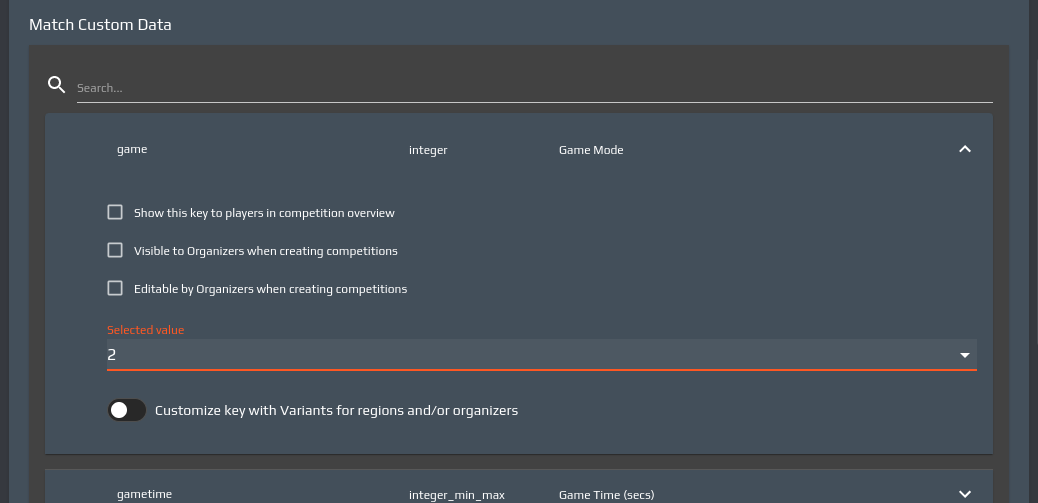
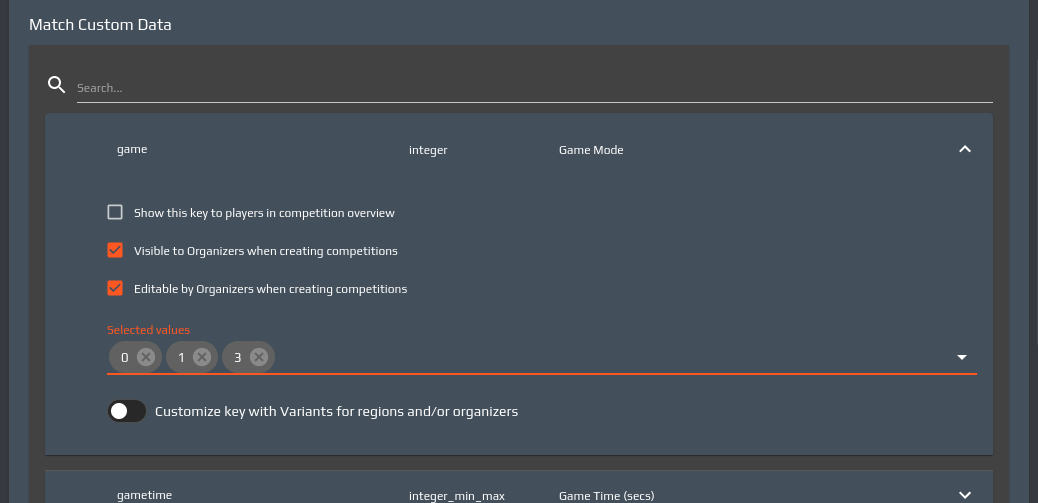
if the key is set to be editable by organizers, the value editor will allow you to pick a subset of the key’s allowed values (potentially all of them) to be presented on the competition settings page (on faceit.com), from which a single value will be picked at competition creation time
Min/Max Keys
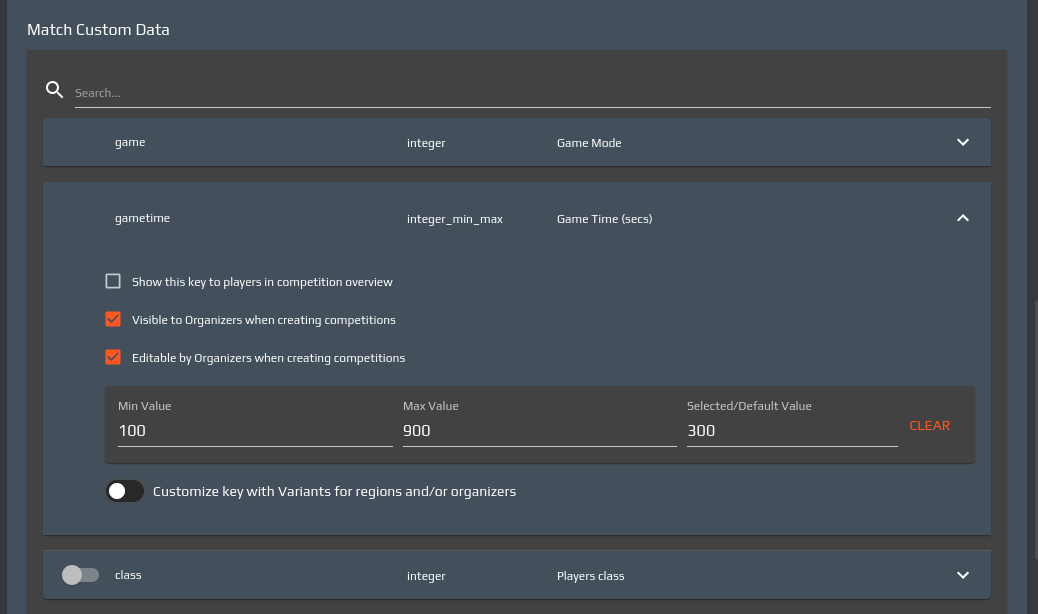
If the key is of type Integer Min/Max (or Float Min/Max) you may, regardless of whether the key is editable by organizers or not:
- change the interval you originally defined upon creating the key in the Match Custom Data subsection
- change the default value, provided it still falls between the min and max values
Multiple Value Keys
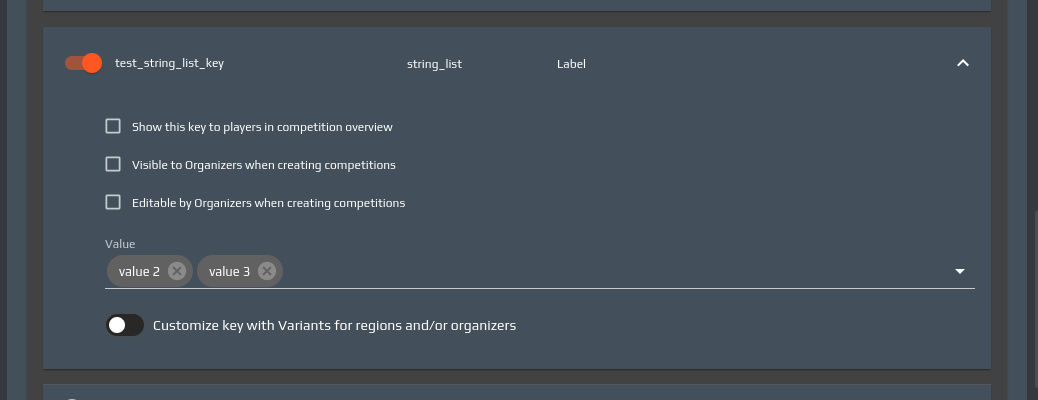
If the key is of type String List, Integer List or Float List (i.e. the match configuration will accept a list of values for it), regardless of whether the key is editable by organizers or not, the value editor will be a multiple selection dropdown which will allow you to pick one or more values among the allowed ones (defined for the key in the Match Custom Data subsection).
Votable Keys
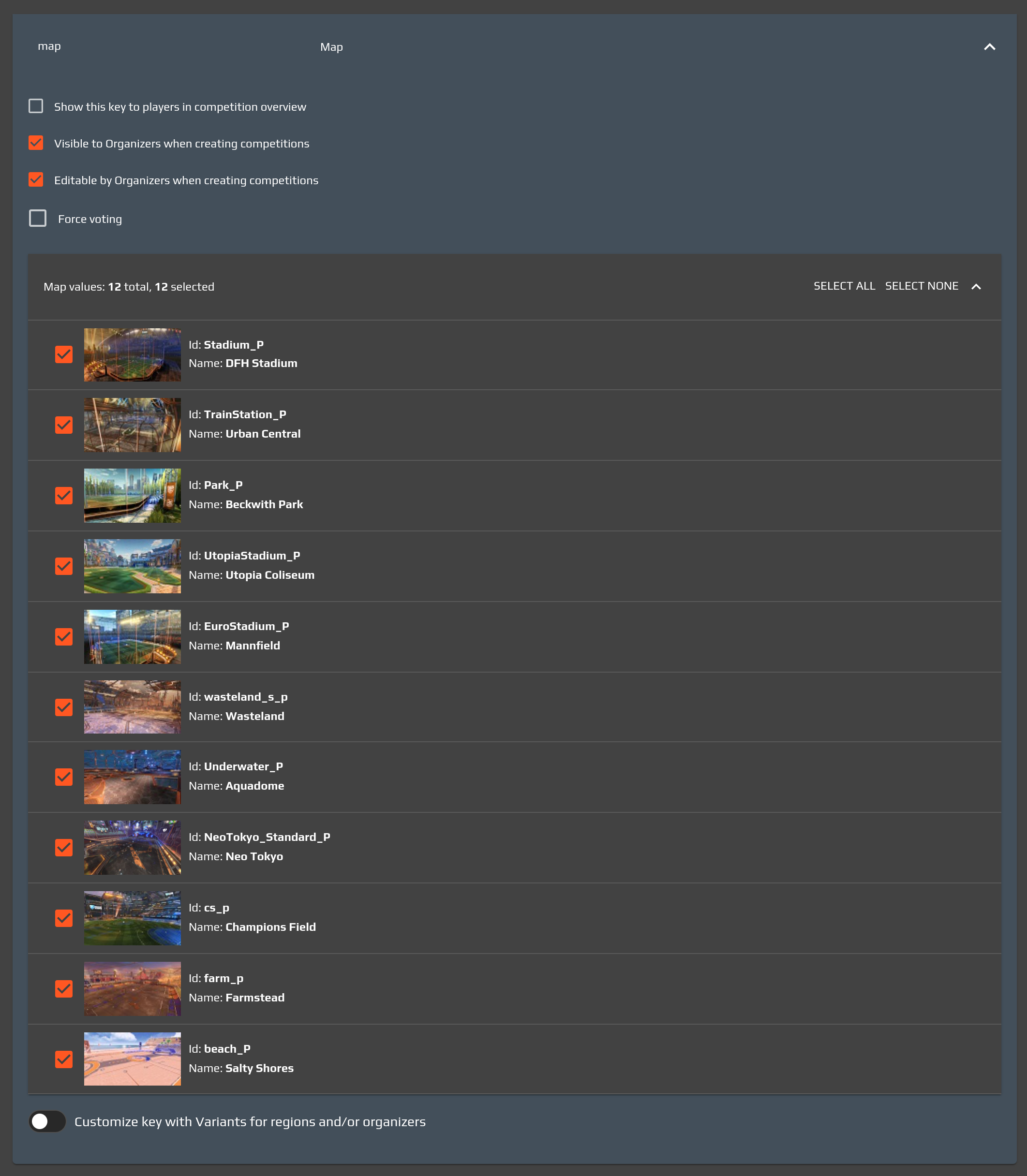
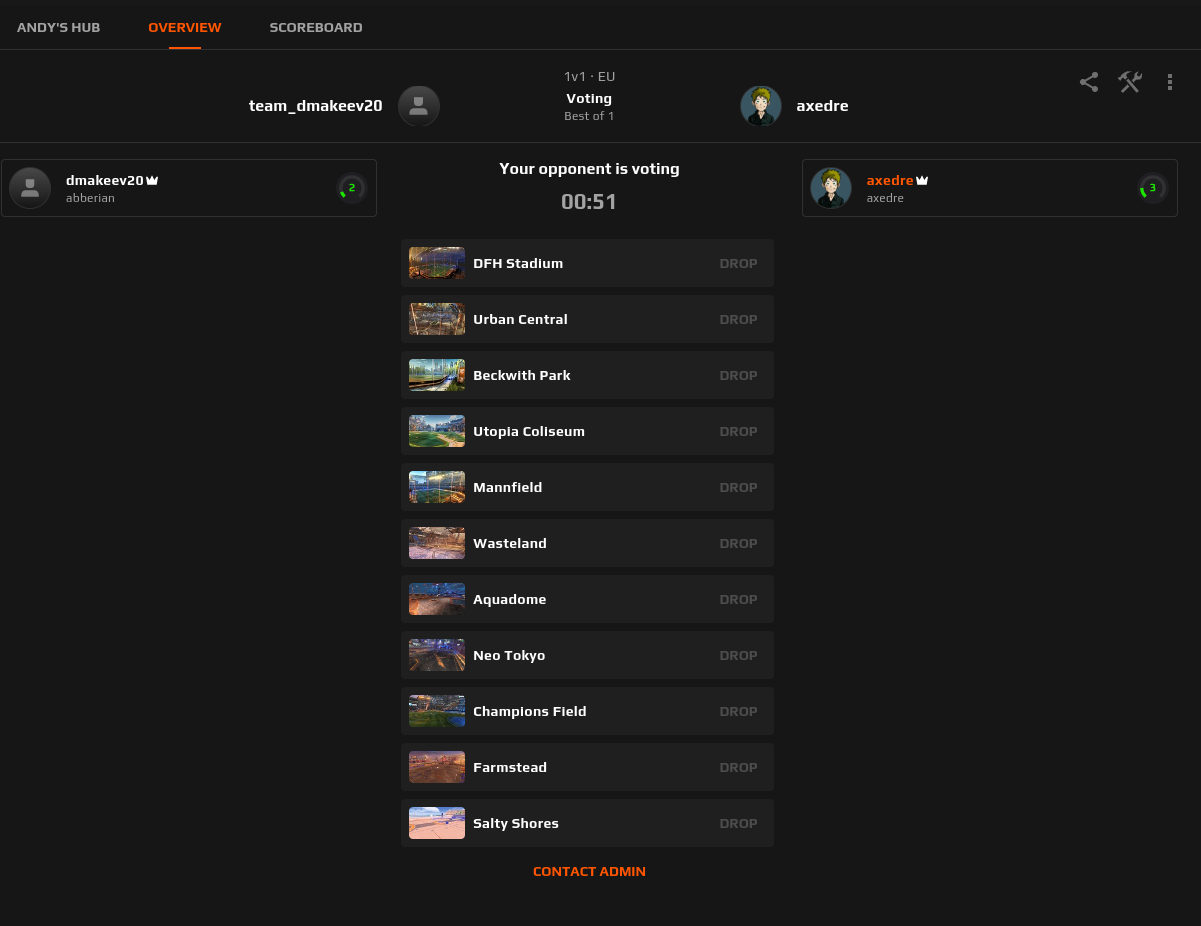
If the key is a votable entity (defined in the Game Modes > Voting section), you will be able to pick a subset of values (potentially, all of them) to be chosen among in the queue settings page on faceit.com, at competition creation time (provided the key is made visible and editable by organizers). If just 1 value is selected, the voting won’t take place; if multiple values are selected, the voting phase will take place in order to decide the value to use in the match.
Competition overview
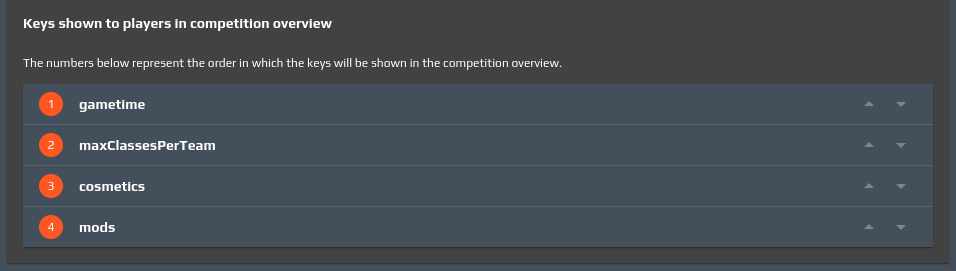
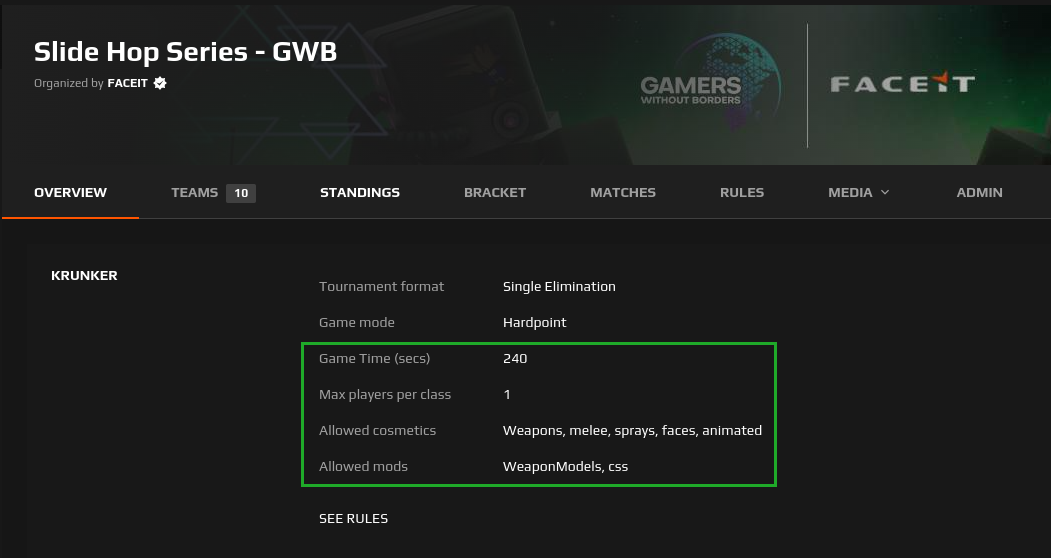
Regardless of the key type, you may choose up to 5 keys to be shown in the competition overview by checking the appropriate box in a key’s edit pane. As you do, those keys will appear in a section at the bottom of the game mode’s Match Custom Data section, allowing you to alter the order in which they are displayed.