Account Linking Types
Manual Account Linking
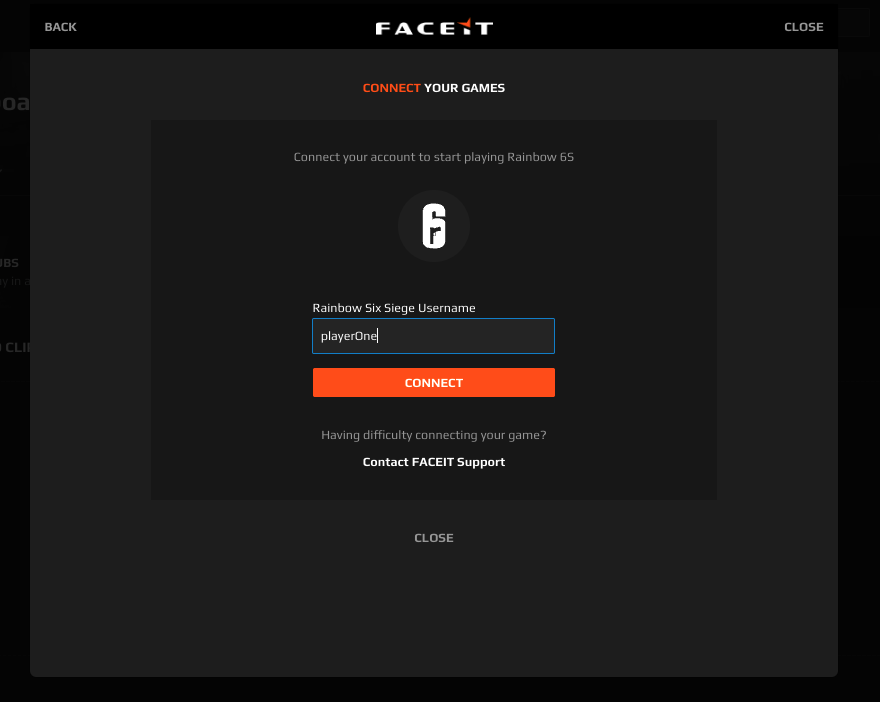
Manual account linking is a special account linking case. This type is not secure since it will ask the user to input his gameId directly in the modal (without any kind of check except the uniqueness). This type is used temporarily to start testing the interactions between FACEIT and the Game when a proper account linking flow has not been configured yet. It is also used for games that don’t have a fully automated integration.
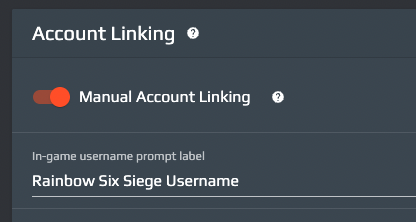
On the Game Studio, the only required configuration is the “Manual Account Linking” toggle and the label the end users will see in the registration modal. What will be inputted there will be used as gameId and gameName
Single Platform
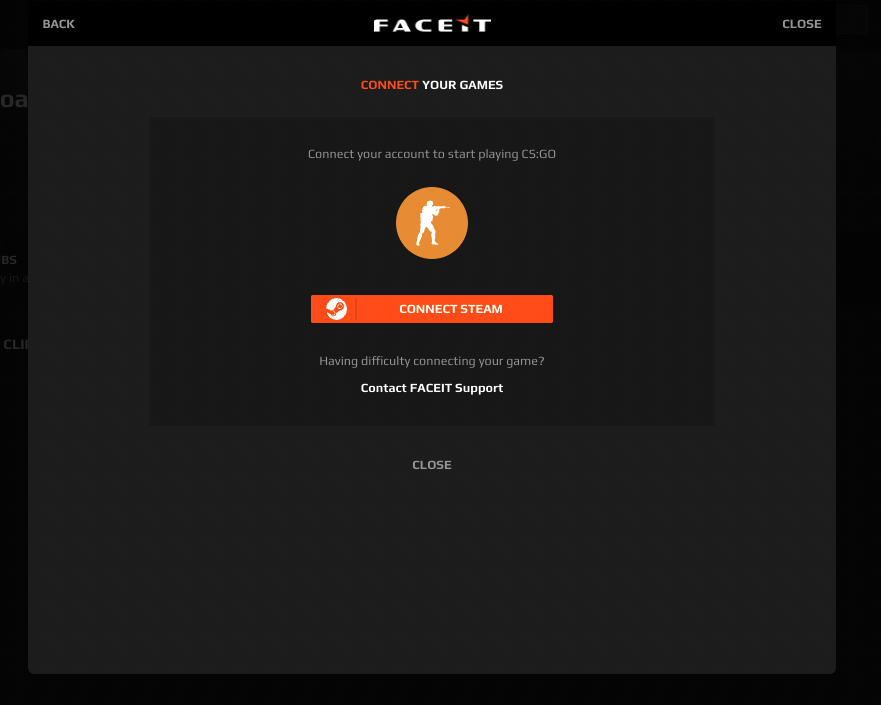
This case is the most common one: it can be used when the game is distributed by (or belongs to) a single platform. The frontend will first trigger a platform login (if not already linked in the past) and will then begin the actual game registration.
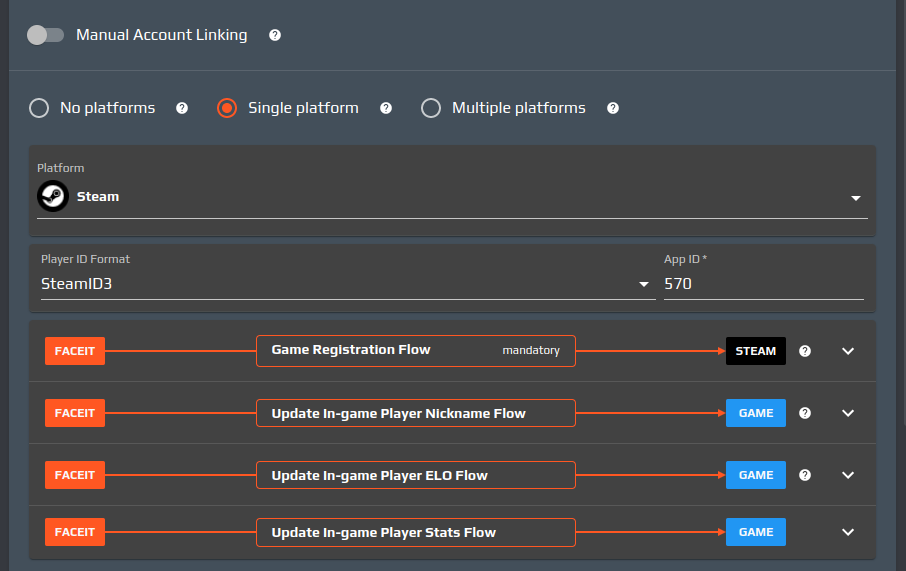
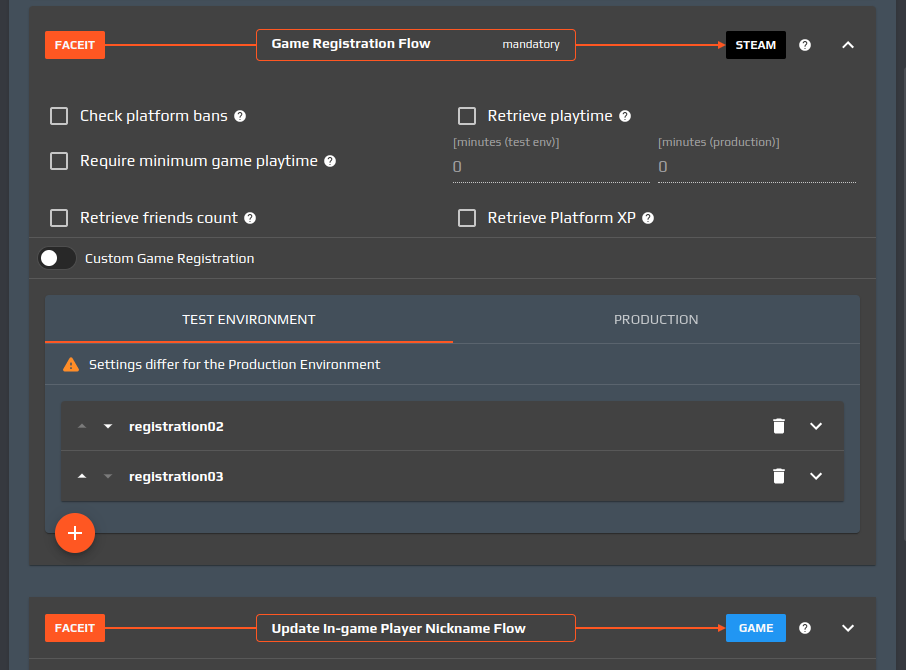
On the Game Studio the “Single platform” option has to be selected, picking the desired platform from the dropdown list. In case there are multiple platform identifiers (e.g. “steamID”/”steamID3”/”steamID64” for Steam, “Xuid”/”gamerTag” for Xbox etc) one must be selected. It will be used to check the game ownership in the registration steps and it will be passed to the following registration steps. The “App ID” field should contain the identifier of the title in the platform, if defined.
There is only one mandatory flow: the Game Registration one. It should check, given the platform identifier of the user, the title ownership and return as much player information as possible. If that can’t be performed with a single endpoint call, we can define additional endpoints to call. The order of the endpoints matters, and can be altered by clicking on the sorting arrows next to the endpoint name.
For some platforms (e.g. Steam) the registration flow can be automatic: the platform is already providing endpoints to verify the title ownership, ban check, playtime etc. so no custom settings are needed; however additional endpoints can still be provided.
If the platform doesn’t provide a title ownership check, the game developer should create their own endpoint on a secure server and configure it enabling the “Custom Game Registration” toggle. The UI will allow game developers to configure the url, headers, body, response and error mappings.
All the endpoints in every flow (Game Registration, Update In-game Player Nickname, Update In-game Player ELO and Update In-game Player Stats) can be configured on a per-environment basis, meaning you can define endpoints for the game's test environment and keep the same settings for the production environment, or override the latter with custom production settings.
Moreover, you can define whether a failure when contacting the endpoint (an HTTP status code different than 2xx Successful) will result in an overall failure of the flow, or whether it can be ignored (and the flow will continue to the next endpoint).
Multiple Platforms
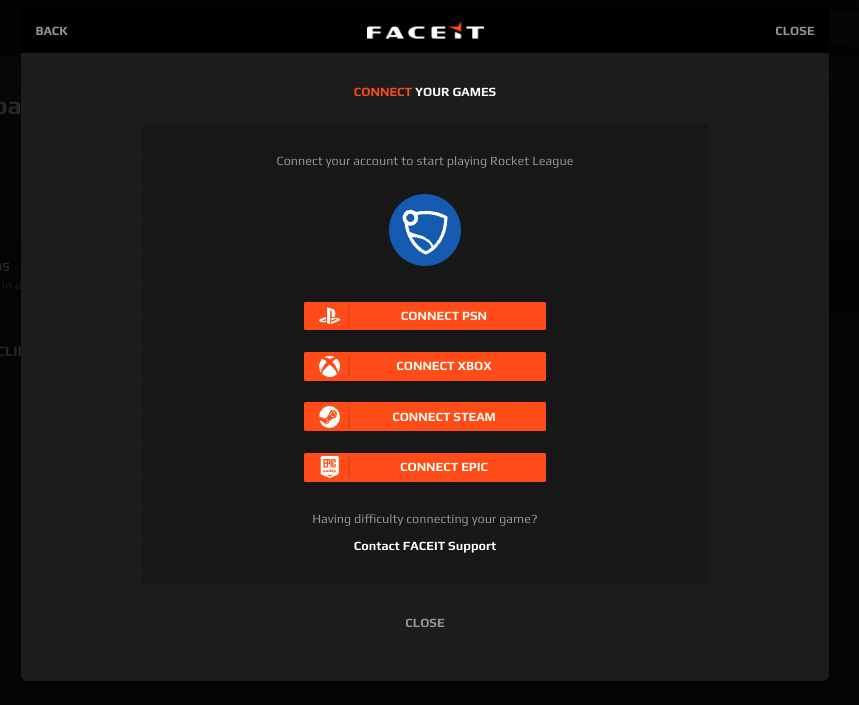
The multiple platforms case can be chosen when the game is distributed on different platforms and all the players are able to play together (cross-platform play). This is a key requirement: if players from different platforms are not able to play against each other, then multiple games (with a single platform configuration) are needed. End users will be able to choose the platform they want to use for the registration; at the end of the flow the same game profile will be linked to the FACEIT account (except for a tag, that will reflect the picked platform).
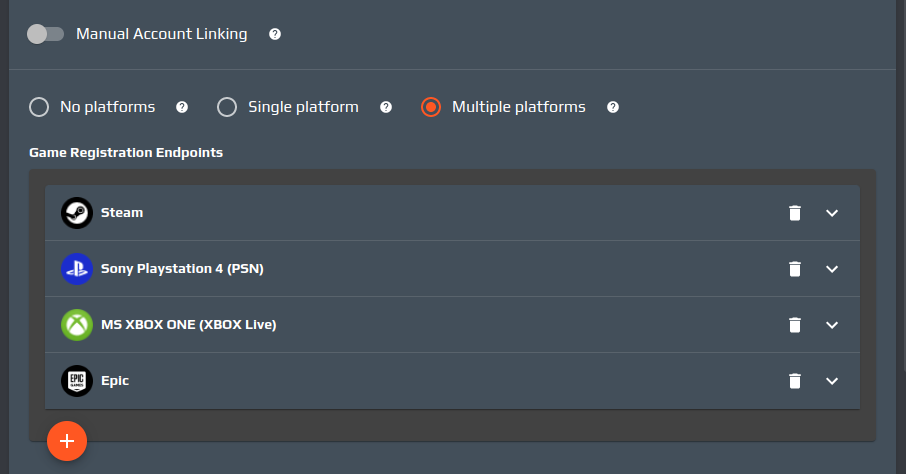
On the Game Studio the “Multiple platforms” option has to be selected and all the required platforms must be added in the platform list. Every platform will have its own registration flow which can be configured expanding the corresponding platform item. The settings will be the same as in the “Single platform” case.
Common flows
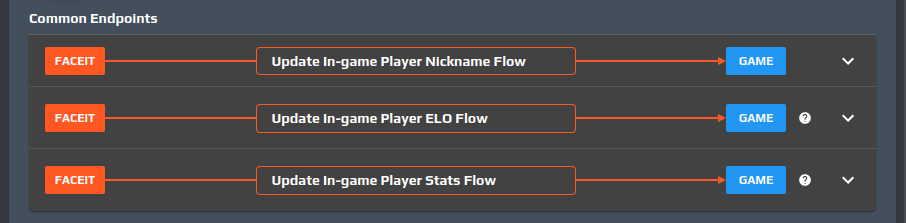
Aside from the Game Registration flow, the other optional flows (Update In-game Player Nickname, Update In-game Player ELO and Update In-game Player Stats) can be defined under "Common endpoints" and will apply to all of the chosen platforms.
No Platforms
This case is suitable for games that are not distributed on a platform. In this case we could register the game using
- An OAuth2.0 login step provided by the game
- A verification code check, inputted inside the registration modal
OAuth case
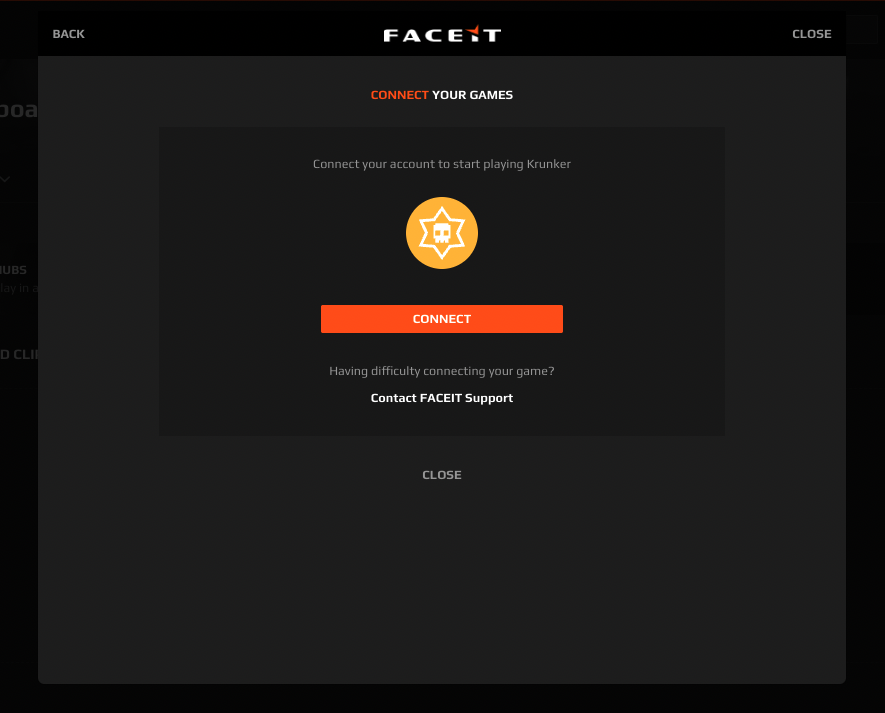
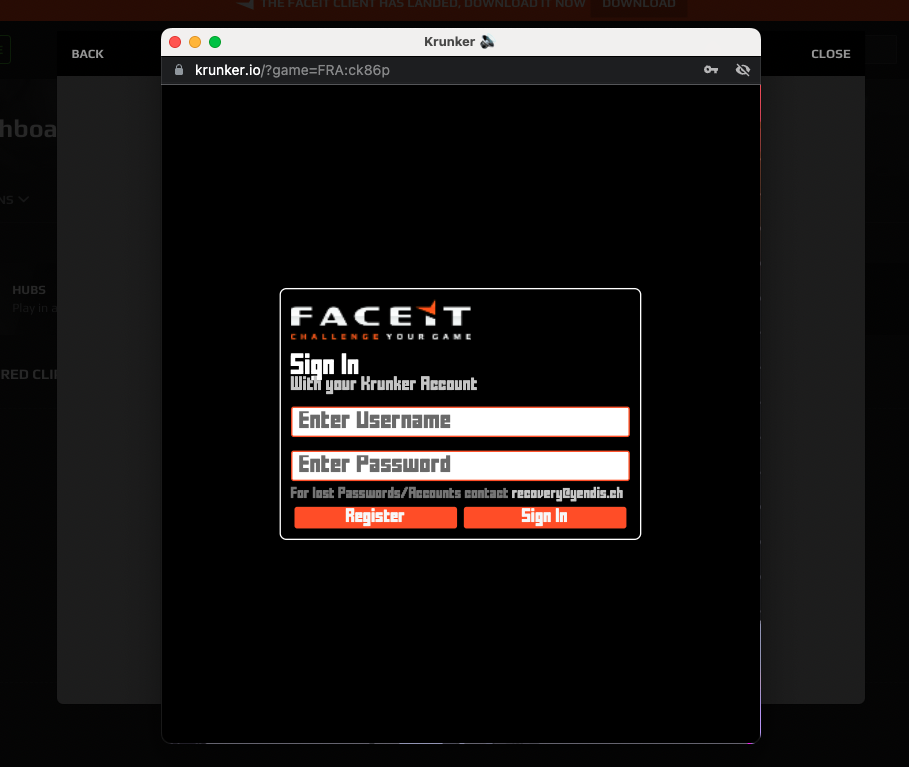
This case is the most secure and least error-prone: the user inputs his credentials within the game domain (he could also be already logged in, thanks to browser cookies) and then a FACEIT redirect url is called triggering the game registration.
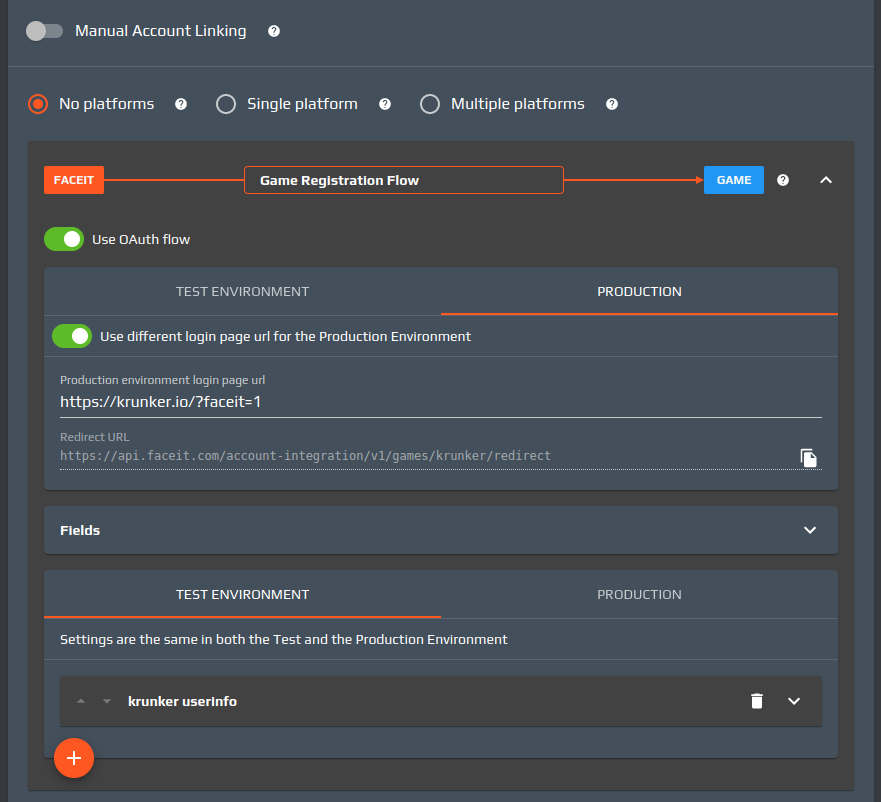
On the Game Studio the “Use OAuth flow” toggle must be enabled, setting the login url page (which will be loaded inside the popup) in the “login page URL” field. The OAuth client must be configured to redirect the user to the url shown in the “Redirect URL” text area. A list of endpoints can then be defined under the OAuth settings: those calls will be performed sequentially when the redirect url is called.
Verification Code case
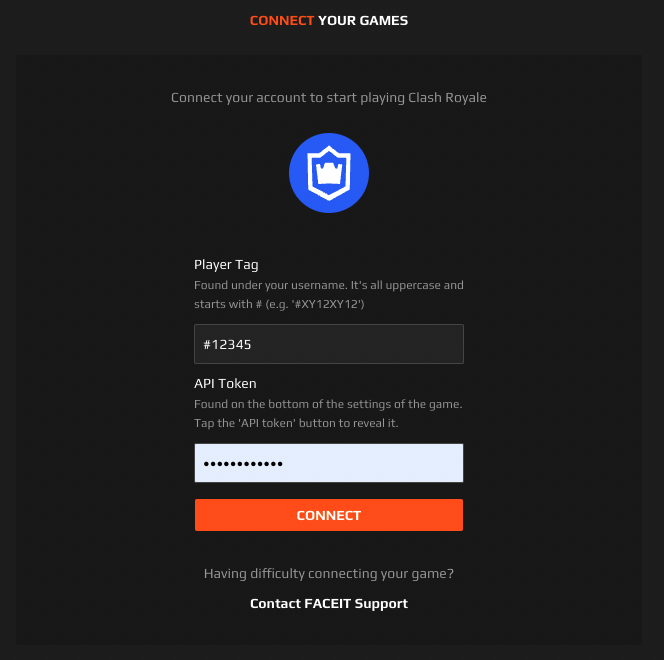
This case can be used to verify the ownership of an account; it requires the user to input a token/verification code that can usually be found within the game client. This is usually the last resort since it requires a bigger effort for the end user compared to the other cases: it can lead to human errors or confusion if the code is not easy to spot within the game client.
On the Game Studio the game developer can define all the fields that need to be displayed on the game registration modal.
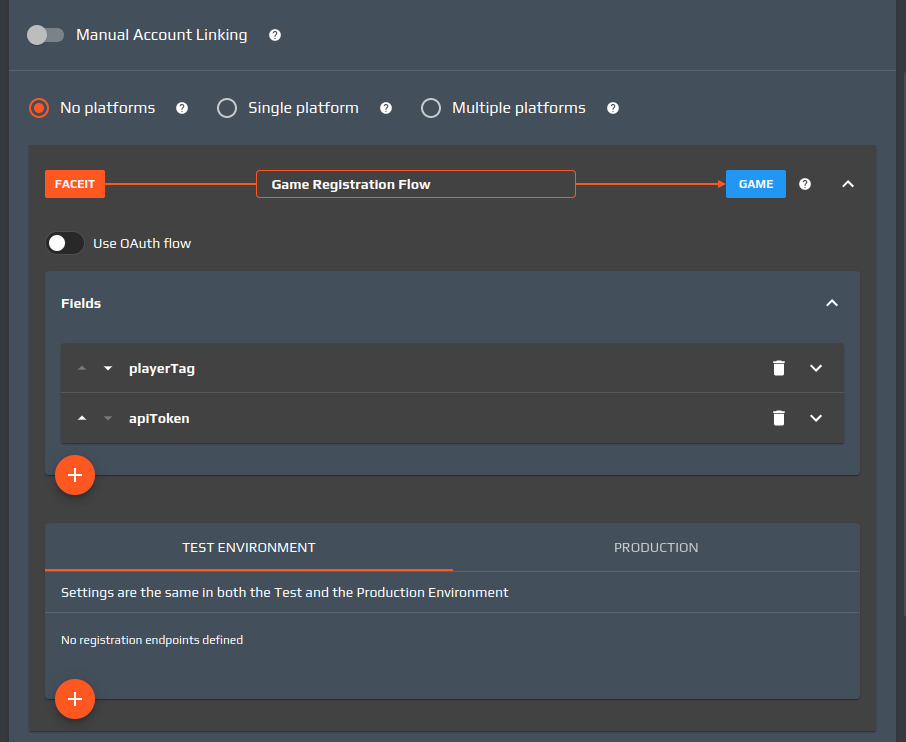
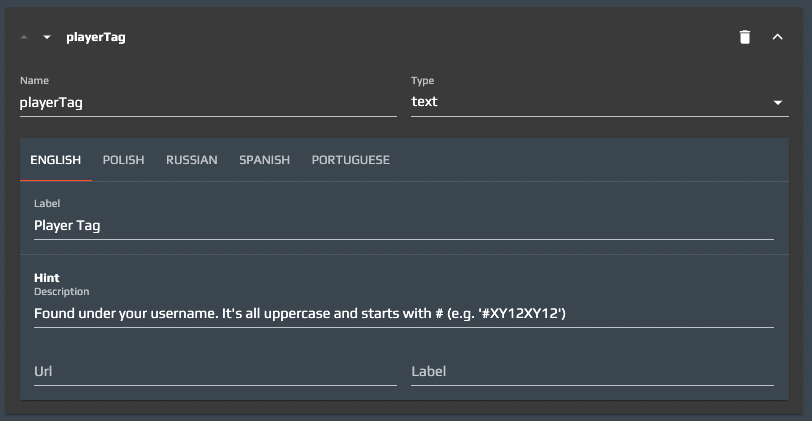
For each field, we can have:
- Name: the name of the field, it will be used later, in the context ([TODO Reference]), to get the field value
- Type: the type of the input element in the form. Can be text, password, number
- Label: what the users will see as a label. It can be localized
- Hint: a helper to instruct the user about the required data. It can have a description and optionally a link (url and label). They can be localized
A list of endpoints can then be defined below the fields: those calls will be performed sequentially when the form is submitted. The values inputted by the user will be available in variables, named like the Name of every field, inside the context.